
Smart Home Automation

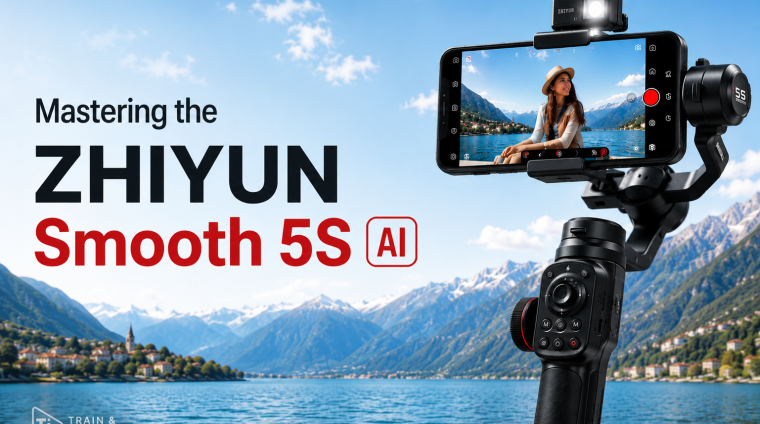
Mastering Zhiyun Smooth 5S AI
What the Course Teaches
Mastering Zhiyun Smooth 5S AI is a complete beginner-to-advanced course designed to teach students how to set up, operate, control, troubleshoot, and creatively use the Zhiyun Smooth 5S AI smartphone gimbal.
The course begins with the fundamentals, including hardware identification, package contents, charging, mounting, balancing, axis movement, controls, buttons, indicators, and gimbal modes. Students then progress into AI tracking, gesture control, custom framing, app-based shooting, native camera workflows, manual filmmaking controls, advanced settings, calibration, firmware management, troubleshooting, and real-world filming techniques.
The course also teaches practical smartphone filmmaking, including smooth walking, camera movement, composition, B-roll, shot sequencing, visual storytelling, and creator-focused filming workflows.
Who the Course Serves
This course serves complete beginners and Smooth 5S AI owners who want to develop more advanced filming skills.
It is especially useful for content creators, YouTubers, TikTok and Instagram creators, vloggers, travelers, small-business owners, Amazon Influencers, product reviewers, fitness creators, real-estate creators, interviewers, event shooters, and anyone who wants to create smoother and more professional-looking smartphone video.
No previous gimbal experience is required.
Skills Students Will Develop
Students will learn how to confidently mount and balance a smartphone, operate the three gimbal axes, use the physical controls, select the correct gimbal mode for different shots, and improve their handheld operating technique.
They will also develop practical skills in AI subject tracking, gesture control, custom framing, subject reacquisition, solo filming, app-based camera control, manual exposure, focus, white balance, frame rate selection, camera movement, composition, B-roll creation, shot sequencing, visual storytelling, troubleshooting, calibration, and firmware management.
By the end of the course, students will understand not only how the Smooth 5S AI works, but also how to choose the correct mode, tracking method, app, camera movement, and filming workflow for a particular situation.
Major Applications and Products Covered
The primary product covered throughout the course is the Zhiyun Smooth 5S AI, including its gimbal hardware, built-in fill light, magnetic AI tracking module, magnetic fill light system, tripod, controls, motors, axes, and supported package accessories.
The course also covers the Zhiyun ZY Cami app and StaCam app, including compatible camera controls, intelligent shooting features, SmartFollow, manual filming controls, monitoring tools, and supported creative features.
Students will also learn how to use the Smooth 5S AI with native iPhone and Android camera apps, as well as practical workflows for Blackmagic Camera and selected social-media camera apps where compatibility allows.
Demonstrations use an iPhone 14 Pro, while the core principles are also applicable to compatible Android smartphones.
Prerequisites
No previous filmmaking, photography, or gimbal experience is required.
Students should ideally have access to a Zhiyun Smooth 5S AI and a compatible smartphone so they can follow the demonstrations and complete the practical exercises.
Access to the AI tracking module is required for the hardware AI tracking portions of the course. Some lessons also require the ZY Cami or StaCam app.
A willingness to practice is more important than previous technical experience.
Course Structure
The course takes students through 27 progressive sections, from initial setup to advanced operation and practical filmmaking.
Students begin with orientation, hardware identification, charging, mounting, balancing, controls, stabilization fundamentals, and gimbal modes.
The course then progresses into operator technique, AI tracker setup, gesture control, custom framing, subject tracking, difficult tracking situations, and a dedicated AI Tracking Test Lab.
Students then move into ZY Cami, StaCam, native camera workflows, third-party camera apps, smartphone filmmaking fundamentals, camera movements, B-roll, shot sequencing, creator workflows, advanced settings, calibration, firmware, troubleshooting, care, and maintenance.
Throughout the course, students complete guided exercises, independent practice activities, practical assignments, downloadable reference materials, section summaries, and Chapter Quizzes.
The course concludes with a final mastery project and comprehensive final examination.
Expected Outcome
By the end of Mastering Zhiyun Smooth 5S AI, students should be able to confidently set up and operate the Smooth 5S AI without relying on trial and error.
They should be able to correctly mount and balance their smartphone, understand and select gimbal modes, control camera movement, use AI tracking and gesture control, work with supported apps, troubleshoot common problems, and apply professional smartphone-filming techniques in real-world situations.
Most importantly, students should be able to move beyond simply owning a gimbal and begin using it intentionally as a creative filmmaking tool.
The final goal is for each student to plan and create a polished 60–90 second Smooth 5S AI mastery film that demonstrates stabilization, purposeful camera movement, composition, tracking, shot sequencing, and confident overall control.
- 27 Sections
- 660 Lessons
- Lifetime
- Section 1 — Course Orientation and RoadmapStart here to understand how the course progresses from complete beginner setup through advanced gimbal operation, AI tracking, smartphone filmmaking, troubleshooting, and creative shooting. You'll also learn how to use the demonstrations, exercises, quizzes, downloads, and practical projects to get the most from the course.14
- 1.11. Welcome to Mastering Zhiyun Smooth 5S AI
- 1.22. What You Will Learn in This Course
- 1.33. Who This Course Is For
- 1.44. What Equipment You Need
- 1.55. Understanding the Course Structure
- 1.66. How to Get the Most From This Course
- 1.77. Meet the Zhiyun Smooth 5S AI
- 1.88. Important: Smooth 5S AI vs Smooth 5S
- 1.99. Understanding Course Source and Version Labels
- 1.1010. Hardware, AI Tracker, App and Phone Features — Who Does What?
- 1.1111. How Demonstrations, Exercises and Assignments Work
- 1.1212. Using the Course Practice Workbook
- 1.1313. Section 1 Summary
- 1.14Chapter Quiz — Course Orientation and Roadmap0 Questions
- Section 2 — Meet the Smooth 5S AI and Package OptionsGet properly introduced to the Zhiyun Smooth 5S AI and learn what separates it from similarly named Zhiyun gimbals. We'll also examine the available package configurations so you understand which components are included and which features depend on specific hardware.17
- 2.114. Section Introduction — Know Exactly Which Gimbal You Own
- 2.215. Smooth 5S AI Model Identification
- 2.316. Smooth 5S AI vs Smooth 5S and Other Smooth Models
- 2.417. Understanding the Standard Package
- 2.518. Understanding the Combo Package
- 2.619. Understanding the Pro Package
- 2.720. Standard vs Combo vs Pro — What Changes?
- 2.821. Which Package Components Enable AI Tracking?
- 2.922. Which Package Components Enable Additional Lighting?
- 2.1023. Package-Dependent Accessories and Features
- 2.1124. The AI Tracking Module at a Glance
- 2.1225. Built-In vs Magnetic Fill Lights
- 2.1326. Important Clarification — No Integrated Extension Rod
- 2.1427. Understanding Published Specifications and Version Differences
- 2.1528. Choosing the Correct Course Path for Your Package
- 2.1629. Section 2 Summary
- 2.17Chapter Quiz — Smooth 5S AI Models and Packages0 Questions
- Section 3 — Unboxing and Hardware TourTake a complete tour of the Smooth 5S AI Pro package and identify the gimbal, tripod, AI tracker, magnetic fill light, filters, motors, axes, clamps, locks, ports, buttons, wheels, and other important components. By the end of this section, you'll know exactly what each major piece is and why it matters.28
- 3.130. Section Introduction — Getting to Know the Hardware
- 3.231. Unboxing the Smooth 5S AI Pro Package
- 3.332. Checking Your Package Contents
- 3.433. Protective Packaging and What Not to Discard
- 3.534. Initial Physical Inspection
- 3.635. The Handle and Main Grip
- 3.736. The Pan Axis, Arm and Motor
- 3.837. The Tilt Axis, Arm and Motor
- 3.938. The Roll Axis, Arm and Motor
- 3.1039. Understanding the Three Axis Locks
- 3.1140. Smartphone Clamp and Clamp Rotation Assembly
- 3.1241. Roll-Arm Adjustment and Clamp Knob
- 3.1342. The Control Panel
- 3.1443. Focus and Zoom Control Wheel
- 3.1544. Focus and Zoom Switch
- 3.1645. Rear Trigger
- 3.1746. USB-C Charging and Firmware Port
- 3.1847. Smartphone Charging Port
- 3.1948. Magnetic AI Tracker and Fill-Light Mount
- 3.2049. Built-In Fill Light
- 3.2150. Magnetic Fill Light
- 3.2251. Tripod and 1/4-Inch Mounting Point
- 3.2352. Wrist Strap, Filters and Carrying Bag
- 3.2453. Documentation, QR Codes and Support Resources
- 3.2554. Basic Assembly Before First Use
- 3.2655. Guided Exercise — Identify Every Major Component
- 3.2756. Section 3 Summary
- 3.28Chapter Quiz — Unboxing and Hardware Anatomy0 Questions
- Section 4 — Power, Charging, Fill Lights and SafetyLearn how to charge, power, and safely operate the Smooth 5S AI before putting it through extended filming sessions. You'll also explore the built-in fill light, magnetic fill lights, brightness control, battery indicators, and the practical effect lighting can have on battery runtime.22
- 4.157. Section Introduction — Powering the System Safely
- 4.258. First-Charge Considerations
- 4.359. Charging the Smooth 5S AI
- 4.460. Understanding Charging Time and Power Sources
- 4.561. Powering the Gimbal On and Off
- 4.662. Understanding Battery-Level Indicators
- 4.763. Understanding Real-World Battery Runtime
- 4.864. How Lighting and AI Tracking Affect Runtime
- 4.965. Using the Smartphone Charging Output
- 4.1066. Using the Built-In Fill Light
- 4.1167. Adjusting Fill-Light Brightness
- 4.1268. Installing the Magnetic Fill Light
- 4.1369. Using Two Magnetic Fill Lights
- 4.1470. Understanding the Maximum Three-Light Configuration
- 4.1571. Using the Magnetic Light Filters
- 4.1672. Fill-Light Safety and Eye Safety
- 4.1773. Operating Temperature and Environmental Limits
- 4.1874. Moisture, Rain, Dust and Sand Precautions
- 4.1975. Battery Handling and Storage Basics
- 4.2076. Guided Exercise — Power, Battery and Lighting Check
- 4.2177. Section 4 Summary
- 4.22Chapter Quiz — Power, Charging, Lighting and Safety0 Questions
- Section 5 — Phone Compatibility, Mounting and BalancingLearn how to correctly mount and balance a compatible smartphone in both portrait and landscape orientation. We'll use a bare iPhone 14 Pro for the primary demonstrations while teaching principles that also apply to compatible iPhone and Android devices.25
- 5.178. Section Introduction — Mount It Right Before You Power It On
- 5.279. Understanding Smartphone Compatibility
- 5.380. Phone Weight, Width and Thickness Requirements
- 5.481. The iPhone 14 Pro Demonstration Setup
- 5.582. Phone Cases, Thick Cases and Fit Considerations
- 5.683. Large Camera Modules and Clearance
- 5.784. Add-On Phone Lenses and Balance Considerations
- 5.885. Preparing the Gimbal for Mounting
- 5.986. Unlocking the Pan, Tilt and Roll Axes
- 5.1087. Mounting Your Phone Safely
- 5.1188. Correct Clamp Placement
- 5.1289. Avoiding Phone Button Interference
- 5.1390. Avoiding Camera-Module Interference
- 5.1491. Mounting in Landscape Orientation
- 5.1592. Mounting in Portrait Orientation
- 5.1693. Balancing the Roll Axis
- 5.1794. Balancing the Phone Front-to-Back
- 5.1895. Checking Pan, Tilt and Roll Clearance
- 5.1996. Recognizing Poor Balance
- 5.2097. Motor Load, Vibration and Overload Symptoms
- 5.2198. Removing the Phone Safely
- 5.2299. Guided Exercise — Mounting Drill
- 5.23100. Independent Practice — Portrait and Landscape Balance
- 5.24101. Section 5 Summary
- 5.25Chapter Quiz — Phone Compatibility, Mounting and Balancing
- Section 6 — Three-Axis Gimbal FundamentalsUnderstand what a three-axis gimbal actually does and how the pan, tilt, and roll axes work together. You'll learn the difference between stabilization and intentional camera movement, why proper balance matters, and why operator technique is still essential even when using a motorized gimbal.19
- 6.1102. Section Introduction — How a Gimbal Actually Stabilizes Your Phone
- 6.2103. What Is a Smartphone Gimbal?
- 6.3104. Mechanical Stabilization vs Electronic Stabilization
- 6.4105. Why Mechanical Stabilization Is Useful
- 6.5106. Understanding Three-Axis Stabilization
- 6.6107. Understanding the Pan Axis
- 6.7108. Understanding the Tilt Axis
- 6.8109. Understanding the Roll Axis
- 6.9110. Understanding the Horizon
- 6.10111. How Motorized Stabilization Works
- 6.11112. Stabilizing the Camera vs Intentionally Moving the Camera
- 6.12113. What a Gimbal Can Correct
- 6.13114. What a Gimbal Cannot Correct
- 6.14115. Camera Shake vs Vertical Walking Bounce
- 6.15116. Why Operator Technique Still Matters
- 6.16117. Before-and-After Stabilization Demonstration
- 6.17118. Guided Exercise — Identify Pan, Tilt and Roll
- 6.18119. Section 6 Summary
- 6.19Chapter Quiz — Three-Axis Gimbal Fundamentals0 Questions
- Section 7 — Buttons, Wheels, Joystick and Status IndicatorsMaster the Smooth 5S AI control panel so you can operate the gimbal confidently without constantly reaching for your phone screen. You'll learn what each button, wheel, switch, joystick movement, indicator light, and trigger action does—and how some controls change depending on the camera app you're using.31
- 7.1120. Section Introduction — Taking Control Without Touching the Screen
- 7.2121. Control Panel Orientation
- 7.3122. Understanding the Joystick
- 7.4123. Focus and Zoom Control Wheel
- 7.5124. Focus and Zoom Function Switch
- 7.6125. MENU Button
- 7.7126. Resolution Button
- 7.8127. Adjustment Wheel
- 7.9128. Fill-Light and Confirmation Button
- 7.10129. ISO and Exposure Button
- 7.11130. DISP Button
- 7.12131. Photo Album Button
- 7.13132. Power Button
- 7.14133. Mode Switch Button
- 7.15134. Photo and Video Button
- 7.16135. FN Button
- 7.17136. Rear Trigger — Single Press
- 7.18137. Rear Trigger — Double Press
- 7.19138. Rear Trigger — Triple Press
- 7.20139. Rear Trigger — Selfie Mode
- 7.21140. Rear Trigger — Go Mode
- 7.22141. Understanding Mode Indicators
- 7.23142. Understanding Battery Indicators
- 7.24143. Understanding Standby and Firmware Indicator Patterns
- 7.25144. Which Controls Depend on ZY Cami?
- 7.26145. Which Controls Depend on StaCam?
- 7.27146. Which Controls Work Independently of Zhiyun Apps?
- 7.28147. Guided Exercise — Blind Control Identification
- 7.29148. Guided Exercise — Joystick Control Drill
- 7.30149. Section 7 Summary
- 7.31Chapter Quiz — Controls and Status Indicators
- Section 8 — Mastering the Gimbal ModesLearn how Pan Follow, Lock, Follow, POV, Vortex, and Go modes behave in real filming situations. Instead of simply memorizing mode names, you'll learn which axes move, which stay locked, how the resulting footage looks, and how to choose the right mode for the shot you want.24
- 8.1150. Section Introduction — Stop Memorizing Modes and Start Choosing Them
- 8.2151. How to Switch Gimbal Modes
- 8.3152. Understanding Locked Axes vs Following Axes
- 8.4153. Pan Follow Mode — PF
- 8.5154. Lock Mode — L
- 8.6155. Follow Mode — F
- 8.7156. Point of View Mode — POV
- 8.8157. Vortex Mode — V
- 8.9158. Go Mode
- 8.10159. PF vs Lock Mode
- 8.11160. PF vs Follow Mode
- 8.12161. Follow vs POV Mode
- 8.13162. Vortex Mode in Real Shooting
- 8.14163. Go Mode for Fast Action
- 8.15164. Choosing Modes for Static Subjects
- 8.16165. Choosing Modes for Moving Subjects
- 8.17166. Choosing Modes for Walking Shots2
- 8.18167. Choosing Modes for Reveals and Orbits
- 8.19168. Common Mode-Selection Mistakes
- 8.20169. Guided Exercise — Mode Identification Challenge
- 8.21170. Guided Exercise — Mode Comparison Exercise
- 8.22171. Assignment — Mounting, Balance and Mode Decision Challenge
- 8.23172. Section 8 Summary
- 8.24Chapter Quiz — Gimbal Modes and Mode Selection0 Questions
- Section 9 — Manual Reposition, Standby and Camera OrientationLearn the everyday operating techniques that make the Smooth 5S AI faster and easier to use. We'll cover manual repositioning, standby behavior, selfie orientation, portrait and landscape configuration, and safe transitions between shooting positions.15
- 9.1173. Section Introduction — Fast Position Changes During Real Shooting
- 9.2174. Manual Repositioning in Supported Modes
- 9.3175. Repositioning the Tilt Axis by Hand
- 9.4176. Repositioning the Pan Axis by Hand
- 9.5177. Understanding Standby Mode
- 9.6178. Entering Standby by Locking the Roll Axis
- 9.7179. Returning From Standby
- 9.8180. Moving Between Portrait and Landscape Shooting
- 9.9181. Using 180-Degree Pan Repositioning
- 9.10182. Using Selfie Orientation
- 9.11183. Safe Orientation Changes Without Axis Collisions
- 9.12184. Common Repositioning and Standby Mistakes
- 9.13185. Guided Exercise — Reposition, Standby and Resume
- 9.14186. Section 9 Summary
- 9.15Chapter Quiz — Repositioning, Standby and Orientation0 Questions
- Section 10 — Operator Technique and Smooth WalkingA gimbal can stabilize rotation, but it cannot completely eliminate poor walking technique. In this section, you'll learn grip, posture, bent-knee movement, starts and stops, turns, forward and backward movement, side movement, and techniques for reducing the vertical bounce that often ruins otherwise smooth footage.23
- 10.1187. Section Introduction — The Gimbal Cannot Fix Bad Footwork
- 10.2188. Proper Stance and Grip
- 10.3189. Relaxed Arms and Elbows
- 10.4190. Bent-Knee Movement
- 10.5191. The Ninja-Walk Concept
- 10.6192. Heel-to-Toe Movement
- 10.7193. Walking Forward Smoothly
- 10.8194. Walking Backward Safely
- 10.9195. Walking Sideways
- 10.10196. Turning Corners Smoothly
- 10.11197. Changing Direction Without Jerking the Shot
- 10.12198. Starting a Camera Move Smoothly
- 10.13199. Stopping a Camera Move Smoothly
- 10.14200. Maintaining Constant Movement Speed
- 10.15201. Reducing Vertical Walking Bounce
- 10.16202. Avoiding Overcorrection
- 10.17203. Using the Joystick Sparingly
- 10.18204. Combining Body Movement With Gimbal Movement
- 10.19205. Before-and-After Walking Comparison
- 10.20206. Guided Exercise — Smooth Walking Drill
- 10.21207. Guided Exercise — Forward, Backward and Sideways Movement.
- 10.22208. Section 10 Summary
- 10.23Chapter Quiz — Operator Technique and Smooth Walking0 Questions
- Section 11 — AI Tracker Setup and Status IndicatorsMeet one of the Smooth 5S AI's most important features: the magnetic AI tracker. You'll learn how to install and orient it for front- or rear-camera shooting, wake and sleep the tracker, understand its indicator lights, and prepare it for hands-free shooting.20
- 11.1209. Section Introduction — Meet the Magnetic AI Tracker
- 11.2210. Identifying the AI Tracking Module
- 11.3211. How the AI Tracker Differs From App Tracking
- 11.4212. Installing the AI Tracker
- 11.5213. Correct Tracker Orientation
- 11.6214. Rear-Camera Tracker Setup
- 11.7215. Front-Camera Tracker Setup
- 11.8216. Rotating the Tracker 180 Degrees
- 11.9217. Waking the AI Tracker
- 11.10218. Putting the AI Tracker to Sleep
- 11.11219. Understanding AI Tracker Status Indicators
- 11.12220. Understanding Connection States
- 11.13221. Understanding Low-Power Behavior
- 11.14222. AI Tracking Without ZY Cami
- 11.15223. AI Tracker With the Native Camera
- 11.16224. Stationary and Tripod-Mounted AI Setup
- 11.17225. Solo-Creator AI Setup
- 11.18226. Guided Exercise — AI Tracker Installation and Status Check
- 11.19227. Section 11 Summary
- 11.20Chapter Quiz — AI Tracker Setup and Indicators0 Questions
- Section 12 — Gesture Control and Custom FramingLearn how to control the AI tracker while standing in front of the camera. You'll practice starting and stopping tracking, activating customized framing, triggering supported camera actions, and improving gesture recognition when lighting or positioning makes detection more difficult.19
- 12.1228. Section Introduction — Hands-Free Control From in Front of the Camera
- 12.2229. How AI Gesture Recognition Works
- 12.3230. Gesture Recognition Range and Practical Positioning
- 12.4231. OK Gesture — Start Face Tracking
- 12.5232. Open Palm — Stop Face Tracking
- 12.6233. Custom Framing Gesture
- 12.7234. Creating Your Preferred Custom Framing
- 12.8235. Capture and Recording Gesture Controls
- 12.9236. Delayed Capture and Recording Gesture
- 12.10237. Immediate Capture and Recording Gesture
- 12.11238. Understanding Gesture Status Indicators
- 12.12239. Gesture Recognition in Bright Backlight
- 12.13240. Gesture Recognition in Low Light
- 12.14241. Clothing, Background and Hand-Position Considerations
- 12.15242. Troubleshooting Failed Gesture Recognition
- 12.16243. Guided Exercise — AI Gesture Drill
- 12.17244. Guided Exercise — Custom Framing Challenge
- 12.18245. Section 12 Summary
- 12.19Chapter Quiz — Gesture Control and Custom Framing0 Questions
- Section 13 — Tracking Behavior, Reacquisition and Difficult ScenesGo beyond basic tracking and see how the system behaves when a subject moves quickly, temporarily leaves the frame, becomes obscured, shares the shot with another person, or enters difficult lighting. You'll learn how to recognize tracking problems and recover deliberately instead of simply hoping the tracker finds the subject again.28
- 13.1246. Section Introduction — What Happens When Tracking Gets Difficult?
- 13.2247. Understanding Basic Tracking Behavior
- 13.3248. Tracking a Stationary Person
- 13.4249. Tracking a Walking Subject
- 13.5250. Tracking Faster Subject Movement
- 13.6251. Lateral Subject Movement
- 13.7252. Subjects Approaching the Camera
- 13.8253. Subjects Moving Away From the Camera
- 13.9254. When the Subject Leaves the Frame
- 13.10255. Understanding Reacquisition
- 13.11256. Temporary Occlusion
- 13.12257. Multiple People in the Frame
- 13.13258. Target Selection and Target Confusion
- 13.14259. Close-Up Tracking
- 13.15260. Full-Body Tracking
- 13.16261. Indoor Tracking
- 13.17262. Outdoor Tracking
- 13.18263. Strong Backlight
- 13.19264. Low-Light Conditions
- 13.20265. Portrait vs Landscape Tracking Considerations
- 13.21266. Front-Camera vs Rear-Camera Tracking
- 13.22267. Solo Creator and Tripod Tracking
- 13.23268. Recognizing Tracking Failure
- 13.24269. Recovering From Lost Tracking
- 13.25270. What Is Manufacturer-Documented vs Empirically Tested?
- 13.26271. Guided Exercise — AI Tracking Challenge
- 13.27272. Section 13 Summary
- 13.28Chapter Quiz — Tracking Behavior and Reacquisition0 Questions
- Section 14 — AI Tracking Test LabPut the AI tracker through a structured series of real-world experiments. We'll test stationary subjects, slow and fast movement, lateral movement, approaching and leaving the camera, temporary frame exits, multiple people, close-ups, full-body framing, low light, backlight, tripod filming, portrait shooting, and landscape shooting.26
- 14.1273. Section Introduction — How to Test AI Tracking Properly
- 14.2274. Setting Up a Repeatable AI Tracking Test
- 14.3275. Recording Firmware, App, Phone and Test Conditions
- 14.4276. AI Test 1 — One Person Standing in Frame
- 14.5277. AI Test 2 — One Person Walking Slowly
- 14.6278. AI Test 3 — One Person Walking Quickly
- 14.7279. AI Test 4 — Lateral Subject Movement
- 14.8280. AI Test 5 — Subject Approaching the Camera
- 14.9281. AI Test 6 — Subject Moving Away
- 14.10282. AI Test 7 — Subject Temporarily Leaving the Frame
- 14.11283. Additional Test — Controlled Occlusion and Reacquisition
- 14.12284. AI Test 8 — Two or More People in Frame
- 14.13285. AI Test 9 — Close-Up Framing
- 14.14286. AI Test 10 — Full-Body Framing
- 14.15287. AI Test 11 — Low-Light Tracking
- 14.16288. AI Test 12 — Strong Backlight
- 14.17289. AI Test 13 — Tripod-Mounted Self-Filming
- 14.18290. AI Test 14 — Portrait Orientation
- 14.19291. AI Test 15 — Landscape Orientation
- 14.20292. Optional Empirical Test — Non-Human Targets
- 14.21293. Comparing Test Results
- 14.22294. Separating Observed Behavior From Published Specifications
- 14.23295. Troubleshooting Failed AI Tests
- 14.24296. Assignment — AI Tracking Evidence Lab
- 14.25297. Section 14 Summary
- 14.26Chapter Quiz — AI Tracking Test Lab0 Questions
- Section 15 — Hardware AI Tracking vs ZY Cami SmartFollowLearn the important difference between tracking performed by the magnetic AI hardware and tracking performed through ZY Cami. You'll compare setup requirements, app dependence, subject selection, gesture control, advantages, limitations, and practical situations where one method makes more sense than the other.20
- 15.1298. Section Introduction — Two Different Ways to Track
- 15.2299. Hardware AI Tracking Explained
- 15.3300. ZY Cami SmartFollow Explained
- 15.4301. What Requires the AI Tracker?
- 15.5302. What Works Without the AI Tracker?
- 15.6303. What Requires ZY Cami?
- 15.7304. What Works Without ZY Cami?
- 15.8305. Gesture Control vs On-Screen Target Selection
- 15.9306. Native-Camera Tracking Workflow
- 15.10307. ZY Cami Tracking Workflow
- 15.11308. App Dependence vs App Independence
- 15.12309. Comparing Setup Time
- 15.13310. Comparing Subject Selection
- 15.14311. Comparing Practical Limitations
- 15.15312. Choosing Tracking for Solo Creation
- 15.16313. Choosing Tracking When Filming Someone Else
- 15.17314. Choosing Tracking for Difficult Subjects
- 15.18315. Guided Exercise — Choose the Correct Tracking Method
- 15.19316. Section 15 Summary
- 15.20Chapter Quiz — Hardware AI Tracking vs SmartFollow0 Questions
- Section 16 — ZY Cami Setup, Connection and Core ControlsLearn how to install, activate, connect, and use ZY Cami with the Smooth 5S AI. We'll explore the main shooting interface, camera controls, zoom functions, SmartFollow access, physical gimbal shortcuts, media controls, and the essential settings needed for everyday shooting.25
- 16.1317. Section Introduction — Getting Started With ZY Cami
- 16.2318. Installing ZY Cami
- 16.3319. Checking the Current App Version
- 16.4320. Permissions and Account Requirements
- 16.5321. First-Time Activation and Internet Requirements
- 16.6322. Connecting the Smooth 5S AI by Bluetooth
- 16.7323. Device Recognition and Selection
- 16.8324. Touring the ZY Cami Home Interface
- 16.9325. Touring the Camera Interface
- 16.10326. Portrait and Landscape Operation
- 16.11327. Photo and Video Capture
- 16.12328. Front and Rear Camera Switching
- 16.13329. Zoom Controls
- 16.14330. Focus and Zoom Wheel Behavior in ZY Cami
- 16.15331. Resolution and Frame-Rate Controls
- 16.16332. Understanding Shooting Settings
- 16.17333. Using the Physical Controls With ZY Cami
- 16.18334. Using the Rear Trigger With ZY Cami
- 16.19335. Saved Media and Gallery Workflow
- 16.20336. ZY Cami Settings
- 16.21337. Connection and Recognition Troubleshooting
- 16.22338. Resetting Bluetooth When Required
- 16.23339. Guided Exercise — Complete ZY Cami Setup
- 16.24340. Section 16 Summary
- 16.25Chapter Quiz — ZY Cami Setup and Core Controls0 Questions
- Section 17 — ZY Cami Intelligent and Creative Shooting ModesMove beyond standard recording and explore ZY Cami's assisted and automated shooting tools. You'll learn how intelligent tracking, Smart Mode workflows, timelapse-based shooting, and other relevant creative features can help you produce shots that would be more difficult to perform manually.18
- 17.1341. Section Introduction — Intelligent Shooting With ZY Cami
- 17.2342. SmartFollow in ZY Cami
- 17.3343. Selecting and Following a Subject
- 17.4344. Smart Mode and SMART Templates
- 17.5345. Using Gesture Control With ZY Cami
- 17.6346. Panorama Shooting
- 17.7347. Timelapse
- 17.8348. Motion Timelapse
- 17.9349. Planning Motion-Timelapse Positions
- 17.10350. Hyperlapse and Additional Creative Modes — Where Supported
- 17.11351. Dolly-Zoom Style Tools — Where Supported
- 17.12352. Automated Shooting vs Manual Gimbal Operation
- 17.13353. Editing and Template Workflows
- 17.14354. ZY Cami Firmware and Calibration Links
- 17.15355. Creative-Mode Troubleshooting
- 17.16356. Guided Exercise — Create an Automated Camera Move
- 17.17357. Section 17 Summary
- 17.18Chapter Quiz — ZY Cami Intelligent and Creative Shooting0 Questions
- Section 18 — StaCam Manual Filmmaking and MonitoringTake greater control over your smartphone camera with StaCam. You'll explore manual shutter speed, ISO, white balance, focus, resolution, frame rate, composition tools, monitoring aids, and supported Smooth 5S AI controls while also learning which features may depend on the current free or paid version of the app.29
- 18.1358. Section Introduction — Why Use StaCam?
- 18.2359. Installing and Checking StaCam
- 18.3360. Current Compatibility and Version Awareness
- 18.4361. Connecting the Smooth 5S AI to StaCam
- 18.5362. Touring the StaCam Interface
- 18.6363. Auto vs Manual Filming
- 18.7364. Understanding Exposure
- 18.8365. Manual Shutter Control
- 18.9366. Manual ISO Control
- 18.10367. White Balance Control
- 18.11368. Manual Focus
- 18.12369. Resolution and Frame Rate
- 18.13370. Understanding Phone-Dependent Camera Capabilities
- 18.14371. Focus Peaking
- 18.15372. Zebra Patterns
- 18.16373. False Color
- 18.17374. Highlight Clipping
- 18.18375. Histograms and Scopes
- 18.19376. Framing Guides and Safe Frames
- 18.20377. LUT and Monitoring Features — Where Available
- 18.21378. Smooth 5S AI Physical Controls in StaCam
- 18.22379. Focus and Zoom Wheel Behavior in StaCam
- 18.23380. Recording Workflow From Setup to Capture
- 18.24381. Free vs Paid Features — Understanding Current Account Differences
- 18.25382. When StaCam Makes More Sense Than ZY Cami
- 18.26383. Guided Exercise — Manual Exposure and Focus
- 18.27384. Guided Exercise — Monitoring Tools
- 18.28385. Section 18 Summary
- 18.29Chapter Quiz — StaCam Manual Filmmaking and Monitoring0 Questions
- Section 19 — Native iPhone and Android Camera WorkflowsLearn how to use the Smooth 5S AI without relying on ZY Cami or StaCam for every shot. Using the iPhone 14 Pro as the primary demonstration device, we'll explore native camera operation, Bluetooth shutter control, independent AI tracking, and important differences students may encounter on Android.17
- 19.1386. Section Introduction — Using the Gimbal Without a Zhiyun Camera App
- 19.2387. What Still Works With a Native Camera App?
- 19.3388. Connecting the Gimbal for Native Camera Control
- 19.4389. iPhone Camera Workflow With the iPhone 14 Pro
- 19.5390. Photo Capture With the Gimbal
- 19.6391. Starting and Stopping Video Recording
- 19.7392. Understanding Bluetooth Shutter Control
- 19.8393. Hardware AI Tracking With the iPhone Camera
- 19.9394. Gesture Tracking With the Native Camera
- 19.10395. What ZY Cami-Specific Controls You Lose
- 19.11396. Native Camera Stabilization vs Gimbal Stabilization
- 19.12397. Android Native Camera Workflow
- 19.13398. Why Android Camera Behavior Can Differ
- 19.14399. Testing Your Own Phone’s Native Camera Controls
- 19.15400. Guided Exercise — Native Camera Control Test
- 19.16401. Section 19 Summary
- 19.17Chapter Quiz — Native iPhone and Android Camera Workflows0 Questions
- Section 20 — Blackmagic Camera and Social-Media AppsLearn what happens when you use the Smooth 5S AI with apps that do not provide full Zhiyun integration. We'll test Blackmagic Camera and popular social-media camera workflows while clearly separating physical stabilization, Bluetooth camera control, AI tracking, and app-specific controls.20
- 20.1402. Section Introduction — Stabilization Does Not Automatically Mean App Integration
- 20.2403. Physical Stabilization vs Electronic App Control
- 20.3404. How to Test Third-Party App Compatibility
- 20.4405. Blackmagic Camera Setup for the Smooth 5S AI
- 20.5406. Testing Record Control in Blackmagic Camera
- 20.6407. Testing AI Tracking While Using Blackmagic Camera
- 20.7408. Testing the Joystick and Gimbal Modes
- 20.8409. Testing the Focus and Zoom Wheel
- 20.9410. Testing Trigger Behavior
- 20.10411. Testing Gesture-Based Camera Control
- 20.11412. Instagram Camera Workflow
- 20.12413. TikTok Camera Workflow
- 20.13414. Facebook Camera Workflow
- 20.14415. Other Professional Camera Apps
- 20.15416. Building a Third-Party App Control Matrix
- 20.16417. Version-Stamping Third-Party Compatibility Results
- 20.17418. Choosing Between Native, Zhiyun and Third-Party Apps
- 20.18419. Assignment — Third-Party App Compatibility Test
- 20.19420. Section 20 Summary
- 20.20Chapter Quiz — Blackmagic Camera and Social-Media Apps0 Questions
- Section 21 — Smartphone Filmmaking Fundamentals for Gimbal UsersLearn the filmmaking principles that make stabilized footage actually look good. We'll cover shot sizes, composition, horizon, headroom, lead room, focal length, perspective, exposure, white balance, focus, frame rate, continuity, B-roll, and movement motivation—all specifically from a gimbal operator's point of view.22
- 21.1421. Section Introduction — Stabilized Does Not Automatically Mean Cinematic
- 21.2422. Understanding Shot Sizes
- 21.3423. Composition and the Rule of Thirds
- 21.4424. Headroom and Lead Room
- 21.5425. Keeping the Horizon Intentional
- 21.6426. Foreground, Background and Subject Separation
- 21.7427. Camera Height and Perspective
- 21.8428. Focal Length and Lens Choice
- 21.9429. Frame Rate Fundamentals
- 21.10430. Shutter Concepts for Video
- 21.11431. Exposure Fundamentals
- 21.12432. White Balance
- 21.13433. Focus
- 21.14434. Movement Motivation — Why Is the Camera Moving?
- 21.15435. Choosing the Right Shot Duration
- 21.16436. Sequencing Shots
- 21.17437. Continuity
- 21.18438. Understanding B-Roll
- 21.19439. Guided Exercise — Fix the Composition
- 21.20440. Guided Exercise — Exposure and White Balance Comparison
- 21.21441. Section 21 Summary
- 21.22Chapter Quiz — Smartphone Filmmaking Fundamentals0 Questions
- Section 22 — Camera Movement LibraryBuild a practical library of useful gimbal moves including pans, tilts, push-ins, pull-outs, follow shots, leading shots, side-follow shots, orbits, arcs, reveals, parallax moves, low-angle moves, simulated slider moves, simulated dolly moves, POV shots, walk-and-talk shots, product orbits, and vertical social-media movements. For each movement, you'll learn the recommended mode, operator position, footwork, starting frame, ending frame, speed, common mistakes, and practice technique.45
- 22.1442. Section Introduction — Building Your Gimbal Movement Vocabulary
- 22.2443. Static Stabilized Shot
- 22.3444. Pan
- 22.4445. Tilt
- 22.5446. Push-In
- 22.6447. Pull-Out
- 22.7448. Tracking and Follow Shot
- 22.8449. Leading Shot
- 22.9450. Side-Follow Shot
- 22.10451. Orbit
- 22.11452. Arc
- 22.12453. Reveal
- 22.13454. Foreground Reveal
- 22.14455. Low-Angle Movement
- 22.15456. High-Angle Movement
- 22.16457. Crane-Style Movement Within the Gimbal’s Actual Reach
- 22.17458. Jib-Style Movement Within the Gimbal’s Actual Reach
- 22.18459. Parallax Movement
- 22.19460. Pedestal-Style Movement
- 22.20461. Simulated Slider Move
- 22.21462. Simulated Dolly Move
- 22.22463. POV Movement
- 22.23464. Selfie and Vlogging Movement
- 22.24465. Walk-and-Talk Movement
- 22.25466. Product Orbit
- 22.26467. Cinematic B-Roll Movement
- 22.27468. Vertical Social-Media Movement
- 22.28469. Horizontal Cinematic Movement
- 22.29470. Intentional Roll Movement
- 22.30471. Transition-Oriented Movement
- 22.31472. Whip-Style Transitions — Where Appropriate
- 22.32473. Timelapse With the Gimbal
- 22.33474. Motion Timelapse
- 22.34475. Panorama Movement
- 22.35476. Hyperlapse — Where Supported
- 22.36477. Choosing the Correct Mode for Each Movement
- 22.37478. Choosing Operator Position and Footwork
- 22.38479. Starting and Ending Every Movement Cleanly
- 22.39480. Controlling Movement Speed
- 22.40481. Guided Exercise — Five Camera Movements Challenge
- 22.41482. Guided Exercise — Cinematic Reveal Exercise
- 22.42483. Guided Exercise — Orbit Challenge
- 22.43484. Guided Exercise — Walk-and-Talk Exercise
- 22.44485. Section 22 Summary
- 22.45Chapter Quiz — Camera Movement Library0 Questions
- Section 23 — B-Roll, Shot Sequencing and Visual StorytellingSmooth individual clips are useful, but strong videos require sequences. In this section, you'll learn how to combine establishing shots, medium shots, detail shots, movement, subject coverage, and transitions into coherent B-roll sequences that actually tell a story.25
- 23.1486. Section Introduction — Turn Individual Shots Into a Story
- 23.2487. Planning Before You Press Record
- 23.3488. Establishing Shots
- 23.4489. Medium Coverage
- 23.5490. Detail and Close-Up Coverage
- 23.6491. Subject-Movement Coverage
- 23.7492. Camera-Movement Coverage
- 23.8493. Building a Beginning, Middle and End
- 23.9494. Matching Shots for Continuity
- 23.10495. Using Movement With Purpose
- 23.11496. Creating Visual Transitions
- 23.12497. Avoiding Random B-Roll
- 23.13498. Building a Cinematic Shot List
- 23.14499. Product B-Roll Exercise
- 23.15500. Vertical Video Challenge
- 23.16501. Assignment — Five-Shot Sequence
- 23.17502. Push-In Shot
- 23.18503. Reveal Shot
- 23.19504. Orbit Shot
- 23.20505. Follow Shot
- 23.21506. Pull-Out Shot
- 23.22507. Combining the Five Shots Into a Sequence
- 23.23508. Reviewing Your Sequence
- 23.24509. Section 23 Summary
- 23.25Chapter Quiz — B-Roll, Sequencing and Visual Storytelling0 Questions
- Section 24 — Creator Workflows and Real-World ProjectsApply everything you've learned to the types of videos people actually create. We'll build practical Smooth 5S AI workflows for YouTube, TikTok, Instagram Reels, Facebook, travel, family videos, walk-and-talk content, interviews, products, Amazon-style demonstrations, real estate, fitness, events, solo filming, and filming another person.29
- 24.1510. Section Introduction — Choosing the Right Workflow for the Job
- 24.2511. Building a Pre-Shoot Workflow
- 24.3512. YouTube Shooting Workflow
- 24.4513. Horizontal Long-Form Video Workflow
- 24.5514. TikTok Workflow
- 24.6515. Instagram Reels Workflow
- 24.7516. Facebook Video Workflow
- 24.8517. Vertical Short-Form Video Workflow
- 24.9518. Travel Filming Workflow
- 24.10519. Family Video Workflow
- 24.11520. Walking and Vlogging Workflow
- 24.12521. Walk-and-Talk Creator Workflow
- 24.13522. Interview Workflow
- 24.14523. Product Video Workflow
- 24.15524. Amazon-Style Product Demonstration Workflow
- 24.16525. Real Estate Workflow
- 24.17526. Fitness Content Workflow
- 24.18527. Event Filming Workflow
- 24.19528. Solo Creator Workflow
- 24.20529. Filming Another Person
- 24.21530. Choosing Orientation for the Platform
- 24.22531. Choosing a Gimbal Mode for the Scenario
- 24.23532. Choosing a Tracking Approach
- 24.24533. Choosing Camera Movements
- 24.25534. Framing and Practical Limitations
- 24.26535. Building a Scenario-Specific Shot List
- 24.27536. Assignment — Creator Workflow Mini-Project
- 24.28537. Section 24 Summary
- 24.29Chapter Quiz — Creator Workflows and Real-World Projects0 Questions
- Section 25 — Advanced Settings, Calibration and FirmwareLearn how to optimize the Smooth 5S AI instead of treating the default configuration as suitable for every situation. We'll explore available motor and response settings, follow behavior, smoothness, dead-zone controls, joystick response, calibration procedures, horizon correction, firmware updates, and how adjustments affect the look and feel of real footage.32
- 25.1538. Section Introduction — Optimizing the Gimbal Without Chasing Magic Settings
- 25.2539. Start With Balance Before Changing Settings
- 25.3540. Understanding Motor and Response Settings
- 25.4541. Motor Strength or Torque — Where Available
- 25.5542. Follow Speed — Where Available
- 25.6543. Responsiveness — Where Available
- 25.7544. Smoothness — Where Available
- 25.8545. Deadband or Dead-Zone Settings — Where Available
- 25.9546. Joystick Speed and Direction — Where Available
- 25.10547. Understanding Mode-Specific Setting Behavior
- 25.11548. What Setting Changes Look Like in Real Footage
- 25.12549. Controlled A/B Setting Comparisons
- 25.13550. Beginner-Friendly Configuration Principles
- 25.14551. Walking Configuration Principles
- 25.15552. Cinematic Slow-Movement Configuration Principles
- 25.16553. Fast-Action Configuration Principles
- 25.17554. Diagnosing an Uneven Horizon
- 25.18555. Automatic Calibration
- 25.19556. When Automatic Calibration Is Appropriate
- 25.20557. Six-Side Calibration
- 25.21558. When Six-Side Calibration Is Appropriate
- 25.22559. Preparing for a Firmware Update
- 25.23560. Firmware Updating Through ZY Cami
- 25.24561. Desktop Firmware Update Workflow
- 25.25562. USB Driver and Calibration Upgrade Tools
- 25.26563. Firmware Update Safety
- 25.27564. Post-Update Checks
- 25.28565. Troubleshooting a Failed Firmware Update
- 25.29566. Guided Exercise — Calibration Diagnostic
- 25.30567. Guided Exercise — Settings Comparison
- 25.31568. Section 25 Summary
- 25.32Chapter Quiz — Advanced Settings, Calibration and Firmware0 Questions
- Section 26 — Troubleshooting, Care and MaintenanceLearn how to systematically diagnose the problems most Smooth 5S AI users are likely to encounter. We'll work through balance problems, vibration, buzzing, motor issues, incorrect modes, Bluetooth failures, app connection problems, tracking failures, gesture problems, charging issues, firmware problems, calibration concerns, and other common symptoms. You'll also learn proper folding, storage, cleaning, battery care, transportation, and when you should stop troubleshooting and contact Zhiyun support.63
- 26.1569. Section Introduction — Diagnose Before You Start Changing Things
- 26.2570. The Troubleshooting Method — Symptom to Cause to Solution
- 26.3571. Gimbal Will Not Power On
- 26.4572. Gimbal Unexpectedly Powers Off
- 26.5573. Phone Will Not Fit
- 26.6574. Phone Will Not Balance
- 26.7575. Phone Mounted Incorrectly
- 26.8576. Motor Vibration, Buzzing and Shaking
- 26.9577. Motor Overload
- 26.10578. Axes Hitting Their Limits
- 26.11579. Phone Contacting the Gimbal Arm
- 26.12580. Physical Obstruction Problems
- 26.13581. Horizon Not Level
- 26.14582. Unusual Tilt or Unexpected Pan
- 26.15583. Wrong Gimbal Mode
- 26.16584. Mode Cannot Be Selected
- 26.17585. Unexpected Standby Mode
- 26.18586. Bluetooth Connection Failure
- 26.19587. ZY Cami Cannot Locate the Gimbal
- 26.20588. App Disconnects From the Gimbal
- 26.21589. Camera Button Does Not Work
- 26.22590. Zoom or Focus Control Does Not Work
- 26.23591. AI Tracking Does Not Activate
- 26.24592. AI Gesture Is Not Recognized
- 26.25593. AI Tracker Status Problems
- 26.26594. Tracking Loses the Subject
- 26.27595. Tracking Locks Onto the Wrong Subject
- 26.28596. Portrait Orientation Problems
- 26.29597. Landscape Orientation Problems
- 26.30598. Charging Problems
- 26.31599. Battery Problems
- 26.32600. Abnormal Heat and When to Stop
- 26.33601. Firmware Update Problems
- 26.34602. Calibration Problems
- 26.35603. Resetting Bluetooth or Configuration Where Supported
- 26.36604. App Permissions
- 26.37605. Camera Permissions
- 26.38606. Bluetooth Permissions
- 26.39607. iOS-Specific Troubleshooting
- 26.40608. Android-Specific Troubleshooting
- 26.41609. Firmware and App Compatibility Problems
- 26.42610. When to Stop Troubleshooting and Contact Zhiyun
- 26.43611. Safe Handling and Cleaning
- 26.44612. Protecting Motors and Axis Arms
- 26.45613. Protecting Contacts and Clamp Surfaces
- 26.46614. Folding and Storage
- 26.47615. Transporting the Gimbal Safely
- 26.48616. Battery Storage and Long-Term Care
- 26.49617. Moisture, Dust and Temperature Protection
- 26.50618. Avoiding Unnecessary Motor Stress
- 26.51619. Keeping ZY Cami and StaCam Current
- 26.52620. Managing Smartphone OS Updates
- 26.53621. Post-Launch Firmware and App Update Routine
- 26.54622. Understanding Version-Sensitive Course Lessons
- 26.55623. Frequently Asked Questions — Setup and Hardware
- 26.56624. Frequently Asked Questions — Modes and Controls
- 26.57625. Frequently Asked Questions — AI Tracking
- 26.58626. Frequently Asked Questions — Apps and Camera Control
- 26.59627. Frequently Asked Questions — Filming and Troubleshooting
- 26.60628. Guided Exercise — Troubleshooting Scenarios
- 26.61629. Hands-On Fault Diagnosis Lab
- 26.62630. Section 26 Summary
- 26.63Chapter Quiz — Troubleshooting, Care and Maintenance0 Questions
- Section 27 — Final Mastery Project, Review and ExamBring everything together by creating your own 60–90 second Smooth 5S AI Mastery Film. You'll plan and record a sequence that demonstrates intentional stabilization, appropriate mode selection, smooth movement, composition, tracking where appropriate, and purposeful shot sequencing. The course concludes with a complete review, self-assessment, and scenario-based final examination designed to confirm that you can solve real filming problems—not just memorize buttons.30
- 27.1631. Section Introduction — Bringing Everything Together
- 27.2632. Course-Wide Skills Review
- 27.3633. Final Project — Smooth 5S AI Mastery Film
- 27.4634. Understanding the 60–90 Second Project Brief
- 27.5635. Choosing Portrait or Landscape
- 27.6636. Choosing Your Camera App Workflow
- 27.7637. Planning Your Gimbal Modes
- 27.8638. Planning Your Tracking Strategy
- 27.9639. Planning Your Camera Movements
- 27.10640. Building the Final Shot List
- 27.11641. Required Shots and Skills
- 27.12642. Optional Advanced Shots
- 27.13643. Technical Project Checklist
- 27.14644. Creative Project Checklist
- 27.15645. Beginning, Middle and End
- 27.16646. Recording Your Mastery Film
- 27.17647. Reviewing Stabilization and Operator Technique
- 27.18648. Reviewing Composition and Framing
- 27.19649. Reviewing Mode Selection
- 27.20650. Reviewing Tracking and AI Use
- 27.21651. Reviewing Shot Sequencing
- 27.22652. Troubleshooting Reflection — What Went Wrong and How You Fixed It
- 27.23653. Self-Assessment
- 27.24654. Using the Final Project Evaluation Rubric
- 27.25655. Independent Practice — Re-Shoot Your Weakest Shot
- 27.26656. Final Project Submission and Completion Checklist
- 27.27657. Section 27 Summary
- 27.28Chapter Quiz — Final Project Readiness0 Questions
- 27.29Final Examination — Mastering Zhiyun Smooth 5S AI0 Questions
- 27.30Course Completion — Where to Go From Here
